Avigilon Client Install
Install Avigilon Client and Configure
This document will walk you through:
- Installing the Avigilon client software
- Adding/Verifying the DMU server information
- Logging in
Requirements:
- You need to be connected to the on-campus network or be connected through VPN
- Using your DMU issued Windows computer
Install Avigilon Software
1. Press the Windows key + R to open the Run box.
Copy and paste the following text into the box:
\\dfs-dsm\#tera7\software\Avigilon\AvigilonControlCenterClient-7.14.10.8.msi and click OK
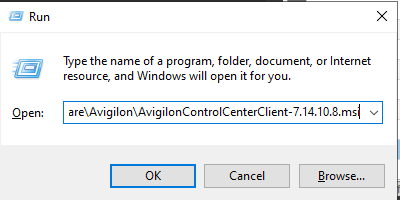
2. Click OK and RUN on the Windows security prompts
Install Wizard will now begin
3. When prompted click Next
Installer may need to install DirectX 9.0c
After DirectX 9.0c is installed the wizard will proceed with installing the Avigilon Control Center Client
When installation is completed;
Avigilon Client will now open
Configure DMU Server and Log in
1. Go to Site Networking in settings
- Click the Gear icon (upper right) > Client Settings > Site Networking then click Find Site
2. Verify or Add these servers. Remove any that do not match.
8025 Campus:
a. Hostname: nvr.dmu.edu
b. Base Port: 38880
3200 Campus:
- IP Address/Hostname: AVIGILONACC.dmu.edu
- Base Port: 38880

3. Click OK to add.
You will now see the Servers on the Site list.
4. Select Each Server on the Site List and set its Connection Type to WAN

Login
1. Click Server/Site from the Site list to logon
2. Enter your current DMU username and password
- [username]@dmu.edu
- Uncheck box "use current Windows credentials"
3. Click Log In
