Symptoms
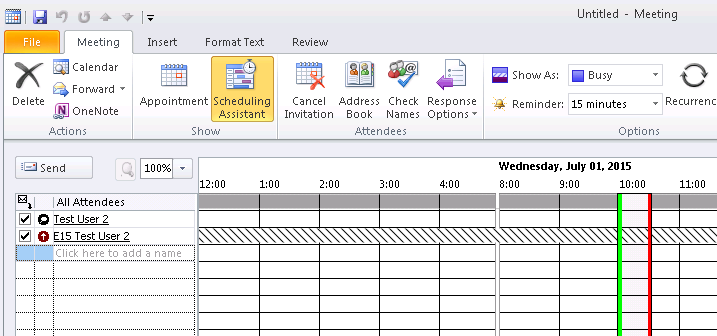
After a mailbox is moved to Microsoft 365, an on-premises user can't see the free/busy information for the mailbox in Scheduling Assistant.
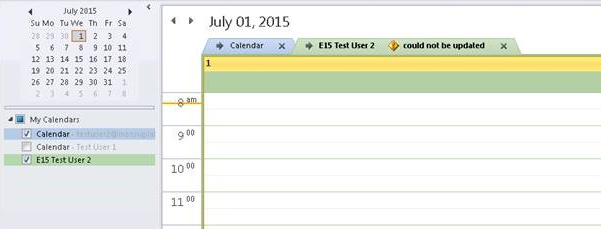
Also, the user can no longer view the Calendar folder, and the user receives a "Could not be updated" error.
Workaround
When the default permissions of the Calendar folder are set to None or Contributor, details can be obtained only when user delegation is used by attaching calendars directly to the calendar view of Outlook. In a hybrid deployment, free/busy and calendar-sharing functionality work differently than when both users are in the same environment. The default permissions determine the kind of free/busy information that users in a remote forest can see. If the default permissions are set to None or Contributor, no free/busy information is displayed for remote users, and users cannot view the mailbox calendar. This is because neither kind of permission offers any level of free/busy visibility.
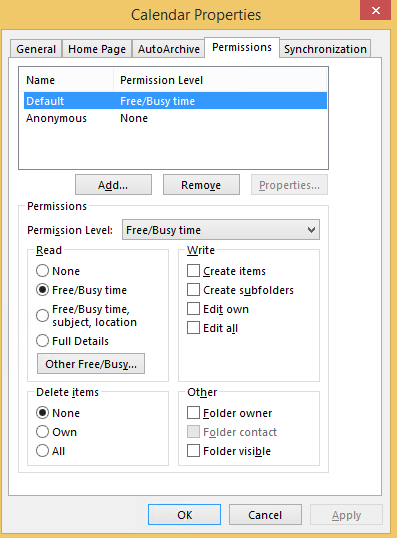
To access this, you will need to Right-Click the Calendar that you are having an issue with and select "Properties" then go to the "Permissions" tab along the top.
****** YOURS WILL SAY "My Organization" NOT "Default" ******
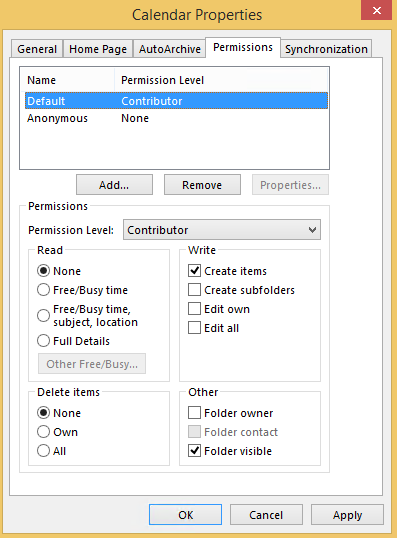
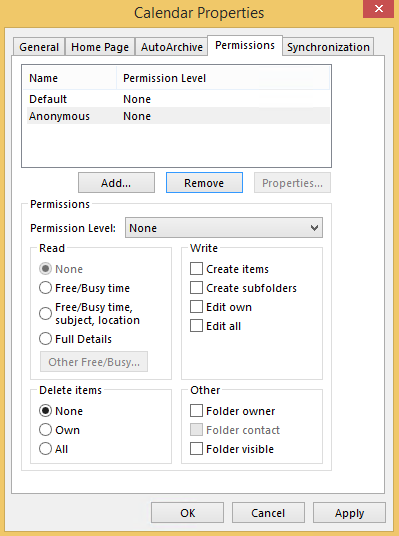
If a remote user must be able to see free/busy information for the mailbox, the mailbox owner can work around this issue by changing the default permissions to Free/Busy time or Free/Busy time, subject, location. This changes the free/busy information that is shared for all remote users. For example, the default permissions can be set to Free/Busy time:
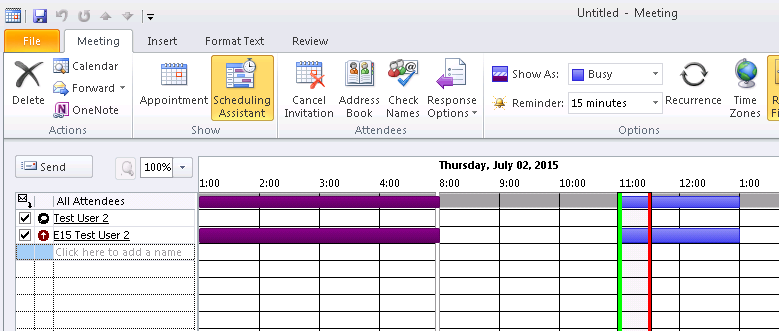
Remote users can see the free/busy data in Scheduling Assistant:
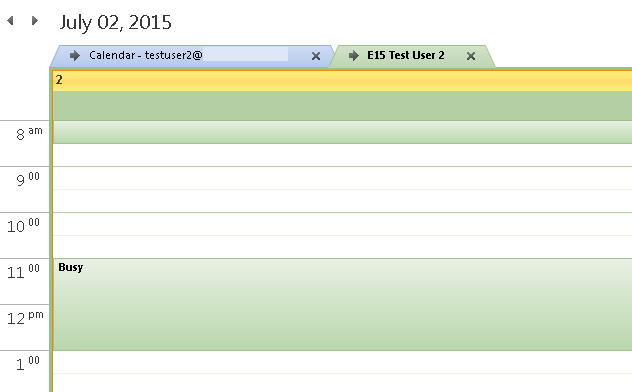
Or, remote users can see the free/busy data as an additional calendar:
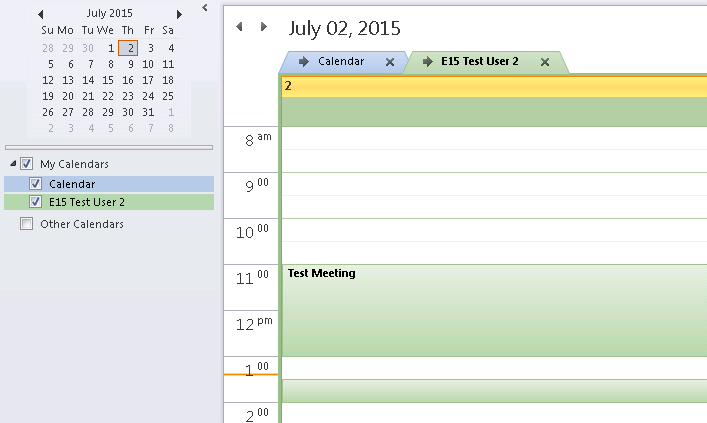
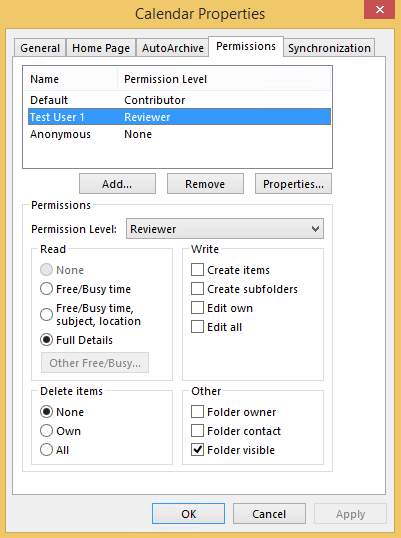
A remote user can be granted Calendar folder permissions to obtain additional access to the contents of the Calendar folder:
Note
Granting the Free/Busy time, subject, location (Limited Details) permission is insufficient in a hybrid environment. The user has to be granted at least Reviewer permission to view calendar item details.
The remote user (Test User 1) can now see the mailbox Calendar folder: